


Claude Desktop 桌面版最近悄悄加入一項「Cowork on Third-Party Platforms」新功能,透過這功能,就能改用第三方 API 或本地 LLM 模型,對於老是碰到上限,想把一些事情改用其他模型的人來說,這就是很不錯的替代方法。除此之外,這功能免費版也能用,意味著免費 Claude 用戶如果串本地 LLM,就能無限量盡情使用 Claude Cowork。下面就來教你怎麼設定,Windows、Mac 版都支援。
另外這邊也提醒一下,相較於直接使用 Claude 的模型,因為多了呼叫這個步驟,因此無論透過第三方 API 還是本地 LLM,速度都會比較慢。
如何啟用 Cowork on Third-Party Platforms 功能
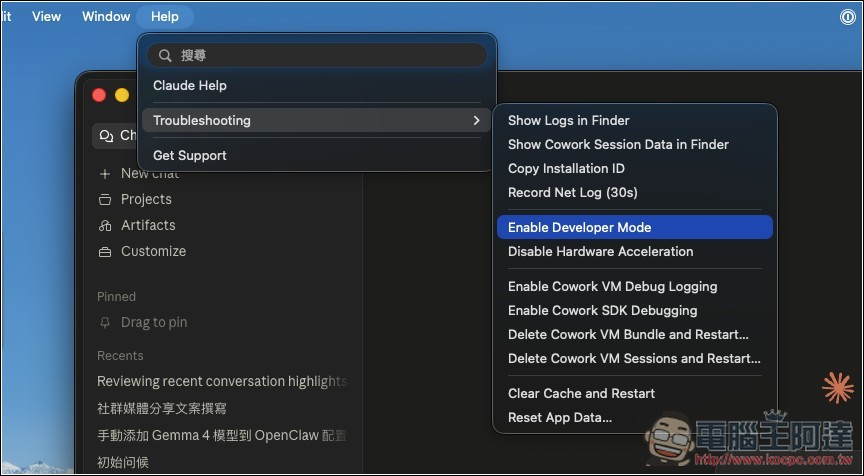
Claude 桌面版的 Cowork on Third-Party Platforms 預設是隱藏的,必須打開開發者模式才會出現:
- 打開 Claude 桌面版
- 上方選單點 Help → Troubleshooting
- 點擊 Enable Developer Mode
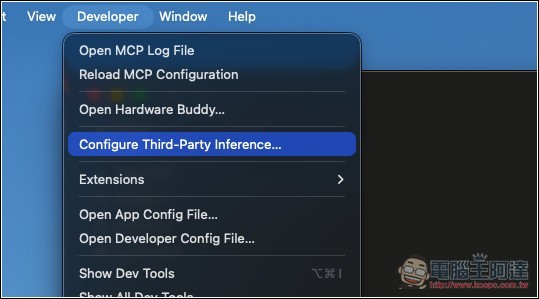
啟用後,上方選單會多出一個 Developer 選單,點 Developer → Configure third-party inference 就會打開設定視窗:
設定介面中,提供四個 Connection 提供者:
- Gateway:Anthropic 相容的 LLM Gateway(Ollama、OpenRouter、LiteLLM 都用這個)
- Bedrock:Amazon Web Services
- Vertex:Google Cloud
- Foundry:Azure AI
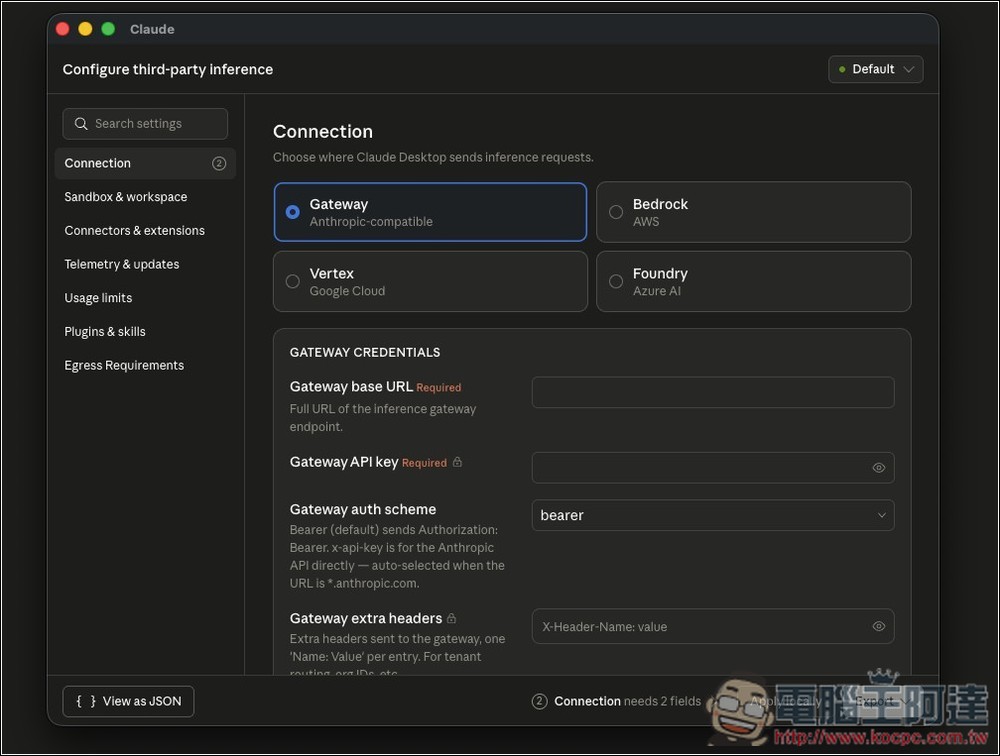
一般來說都是選 Gateway 這一個,上面兩個欄位必填:
- Gateway base URL(必填):推論端點的完整 URL,必須是 https:// 開頭
- Gateway API key(必填):API 金鑰;如果你的 Gateway 不需要驗證,隨便填一個字串也可以
- Gateway auth scheme:認證方式,預設 bearer 就好
- Gateway extra headers:額外的 HTTP header,通常用不到
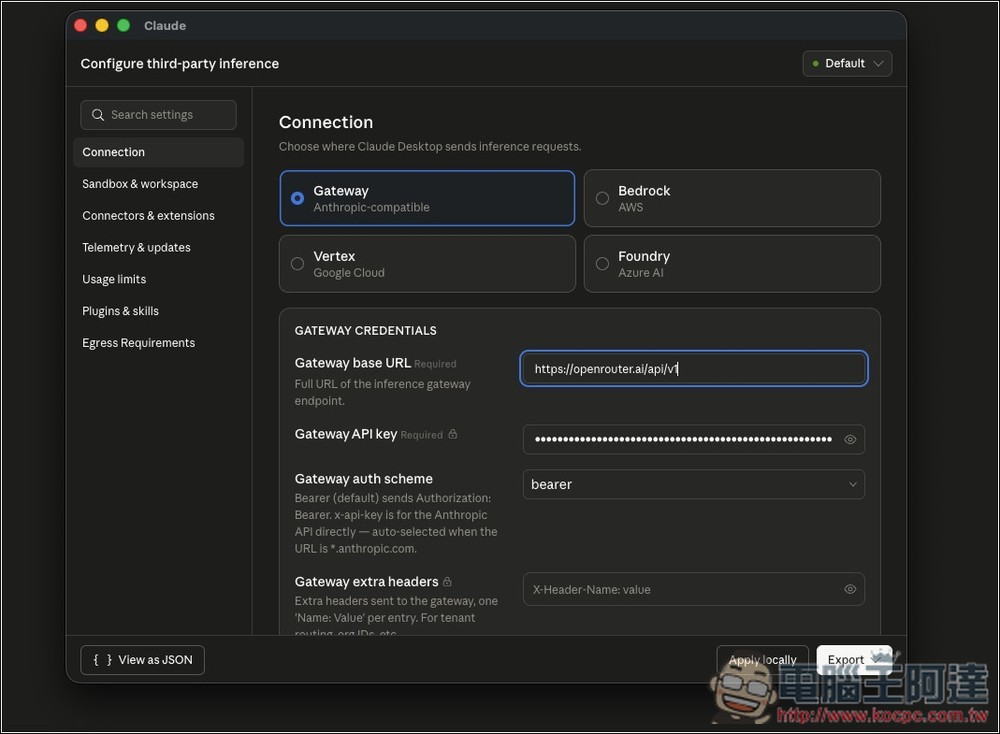
這邊有一點要注意的是,目前 Claude 沒有提供模型設定欄位,如果你的 Gateway 有實作 GET /v1/models 端點,那 Claude 就會自動偵測可用模型。如果沒有、或是回傳的格式它讀不出來,你必須從終端機改設定檔,來手動指定模型,這難度比較高,碰到任何問題,建議可以搭配 AI 詢問,把以下兩個官方說明連結丟給 AI,AI 就會知道怎麼設定:
- Install and configure Claude Cowork with third-party platforms
- Using Cowork on 3P with an LLM Gateway
下方是 Mac 和 Windows 的設定檔位置:
- macOS:~/Library/Application Support/Claude-3p/claude_desktop_config.json
- Windows:%APPDATA%\Claude-3p\claude_desktop_config.json
模型清單會寫在 enterpriseConfig 和 configLibrary 區塊內,下面我會示範 OpenRouter 的改法。
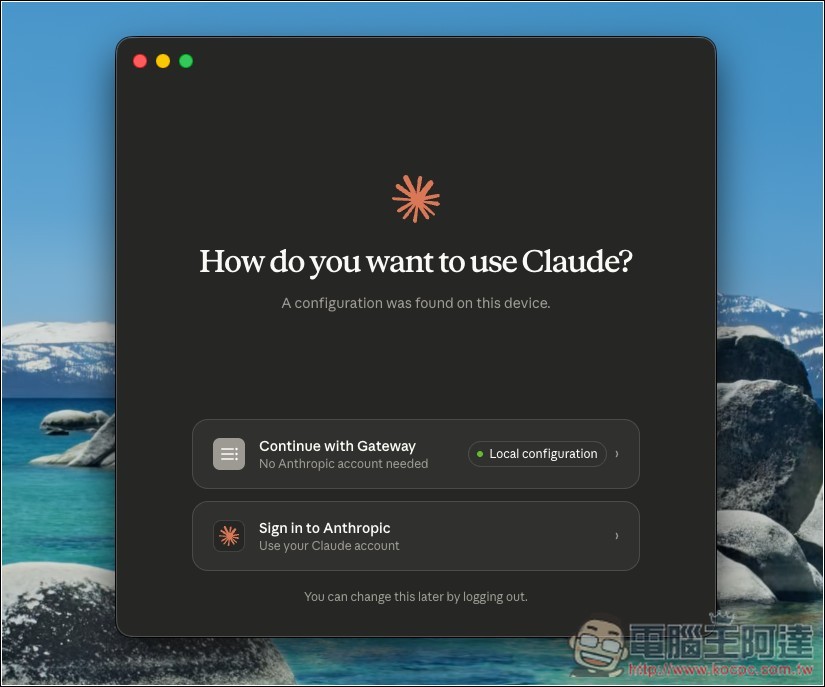
設定完按下 Apply locally 後,會自動重啟 Claude 桌面版。啟動時會跳出選擇畫面,Continue with Gateway 就是改用第三方:
如何串接本地 LLM:以 Ollama 為例
Ollama 應該是很多人有在用的 LLM 本地服務,開始前你要先知道的是,前面有提到 Claude 桌面版的 Gateway base URL 必須走 HTTPS,但 Ollama 預設只開 HTTP(http://localhost:11434),所以需要在 Ollama 前面加一層 HTTPS 反向代理。
我自己是用 Caddy,會自動處理憑證,最省事。在終端機輸入以下指令:
# 安裝 Caddy
brew install caddy
# 啟動反向代理(會要求輸入系統密碼來安裝自簽憑證)
caddy reverse-proxy --from localhost:8443 --to localhost:11434
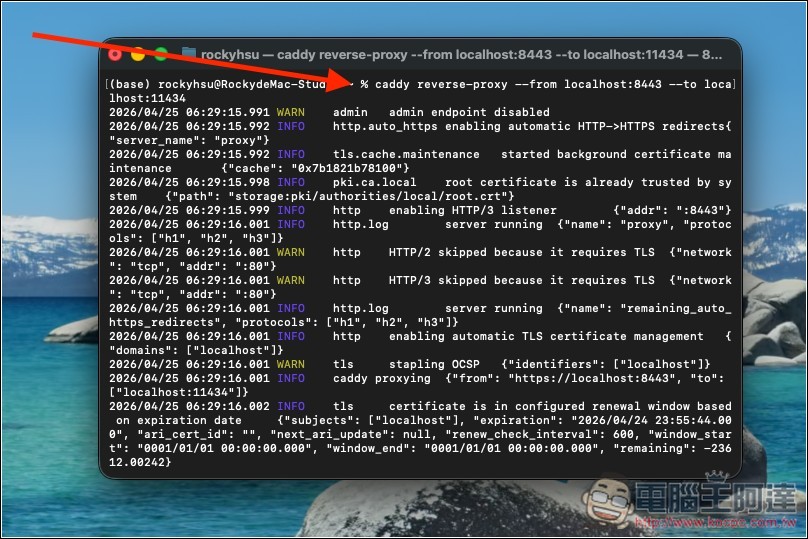
啟動後,Ollama 的 HTTPS 端點就會變成 https://localhost:8443
而 Ollama 已經有實作 Anthropic 相容的 /v1/messages 端點,因此大部分模型都可以直接用。
接著就能打開 Claude 桌面版的 Configure third-party inference 設定,選 Gateway,然後填寫:
- Gateway base URL:https://localhost:8443
- Gateway API key:ollama(隨意填,Ollama 不驗證)
- Gateway auth scheme:bearer
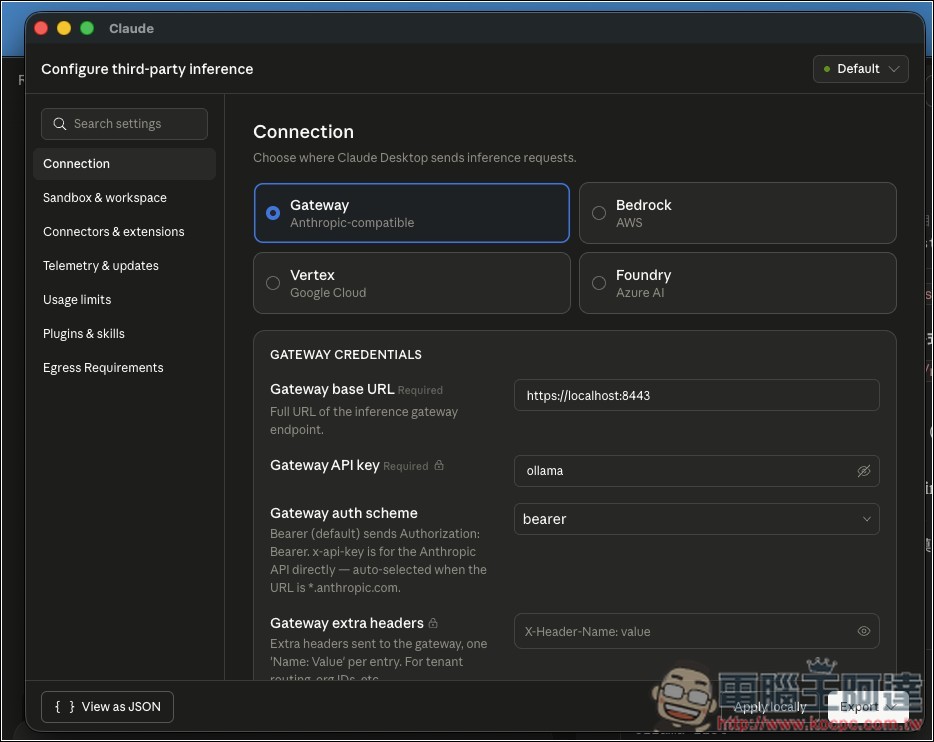
填完按 Apply locally 重開。在模型清單中,就會看到 Ollama 設定好的模型。如果你用本地模型很慢,建議可以改用 Ollama 的雲端模型,會快很多且每週的免費額度也不少:
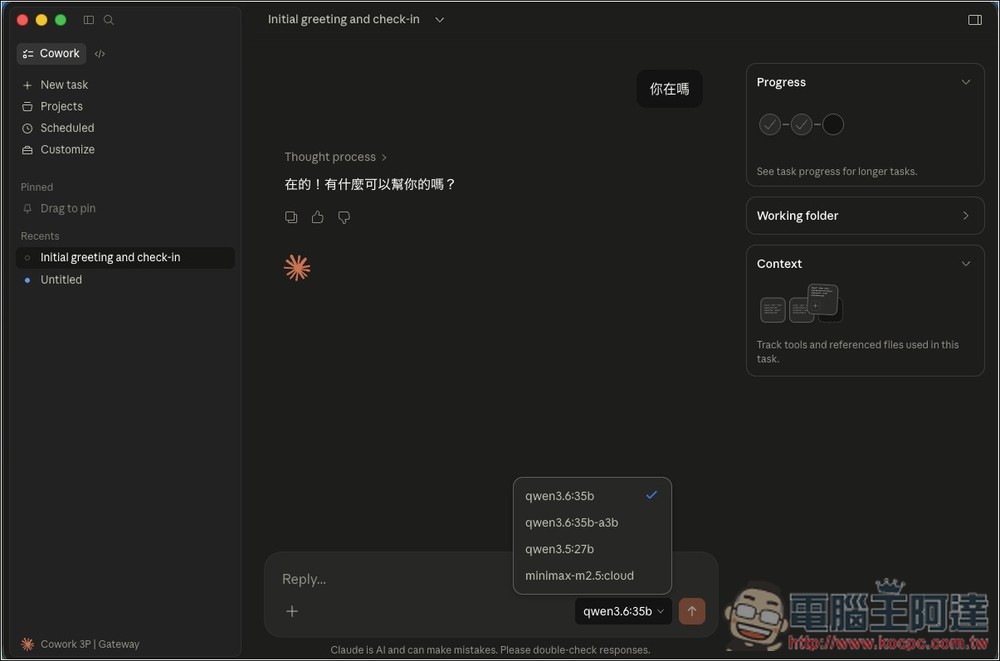
如何串接第三方 API:以 OpenRouter 為例
OpenRouter 端點本身就是 HTTPS(https://openrouter.ai/api),所以不用再架反向代理,這方便很多。只不過 OpenRouter 提供的模型很多,有付費也有免費,因此沒有指定模型的話,每次要用可能會很難找。
免費模型也有速率限制,高峰時段很可能回應較慢或被限流,我測試下來速度是比 Ollama 的雲端免費模型慢很多。
首先先到 OpenRouter 註冊帳號,再到 Keys 頁面建立 API key(格式為 sk-or-v1-…)。免費模型不用綁信用卡或儲值,付費模型則要先儲值。
接著就到 Claude 桌面版的 Developer → Configure third-party inference,選 Gateway,然後填寫以下資訊:
- Gateway base URL:https://openrouter.ai/api
- Gateway API key:你的 OpenRouter API key(sk-or-v1-…)
- Gateway auth scheme:bearer
填完按 Apply locally。重啟之後,在模型選單中就會看到一大堆可選項目:
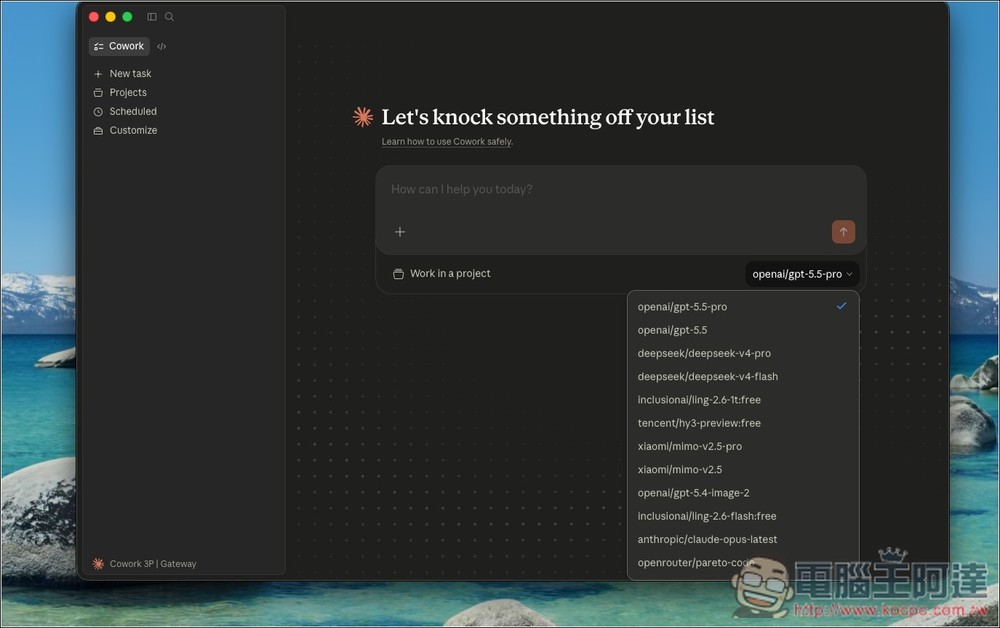
如果你想要指定模型,有兩個設定檔需要修改,到終端機裡使用以下兩個指令。這邊我設定兩個免費模型,分別是 NVIDIA 的 nemotron-3-super-120b-a12b:free 和 Google 的 gemma-4-26b-a4b-it:free。
更新 enterpriseConfig:
python3 -c "import json,os;p=os.path.expanduser('~/Library/Application Support/Claude-3p/claude_desktop_config.json');c=json.load(open(p));c.setdefault('enterpriseConfig',{})['inferenceModels']='[\"nvidia/nemotron-3-super-120b-a12b:free\",\"google/gemma-4-26b-a4b-it:free\"]';json.dump(c,open(p,'w'),indent=2);print('enterpriseConfig 設定完成!')"
更新 configLibrary:
python3 -c "import json,glob,os;[(lambda d:(d.__setitem__('inferenceModels',['nvidia/nemotron-3-super-120b-a12b:free','google/gemma-4-26b-a4b-it:free']),json.dump(d,open(f,'w'),indent=2),print(f'configLibrary 設定完成:{f}')))(json.load(open(f))) for f in glob.glob(os.path.expanduser('~/Library/Application Support/Claude-3p/configLibrary/*.json')) if '_meta.json' not in f]"
再次重開 Claude,就會變成只有兩個模型:
